- Get Started
- Video Tutorials
- Knowledge Base
- FAQs & Troubleshooting
How to use high-speed print pick lists feature in 4Seller
When the number of orders is greater than 300 and no more than 1000, 4Seller supports high-speed printing for pick lists. After enabling high-speed pick list printing, sellers can skip the preview step and send documents directly to the printer, streamlining the printing workflow and improving order printing efficiency.

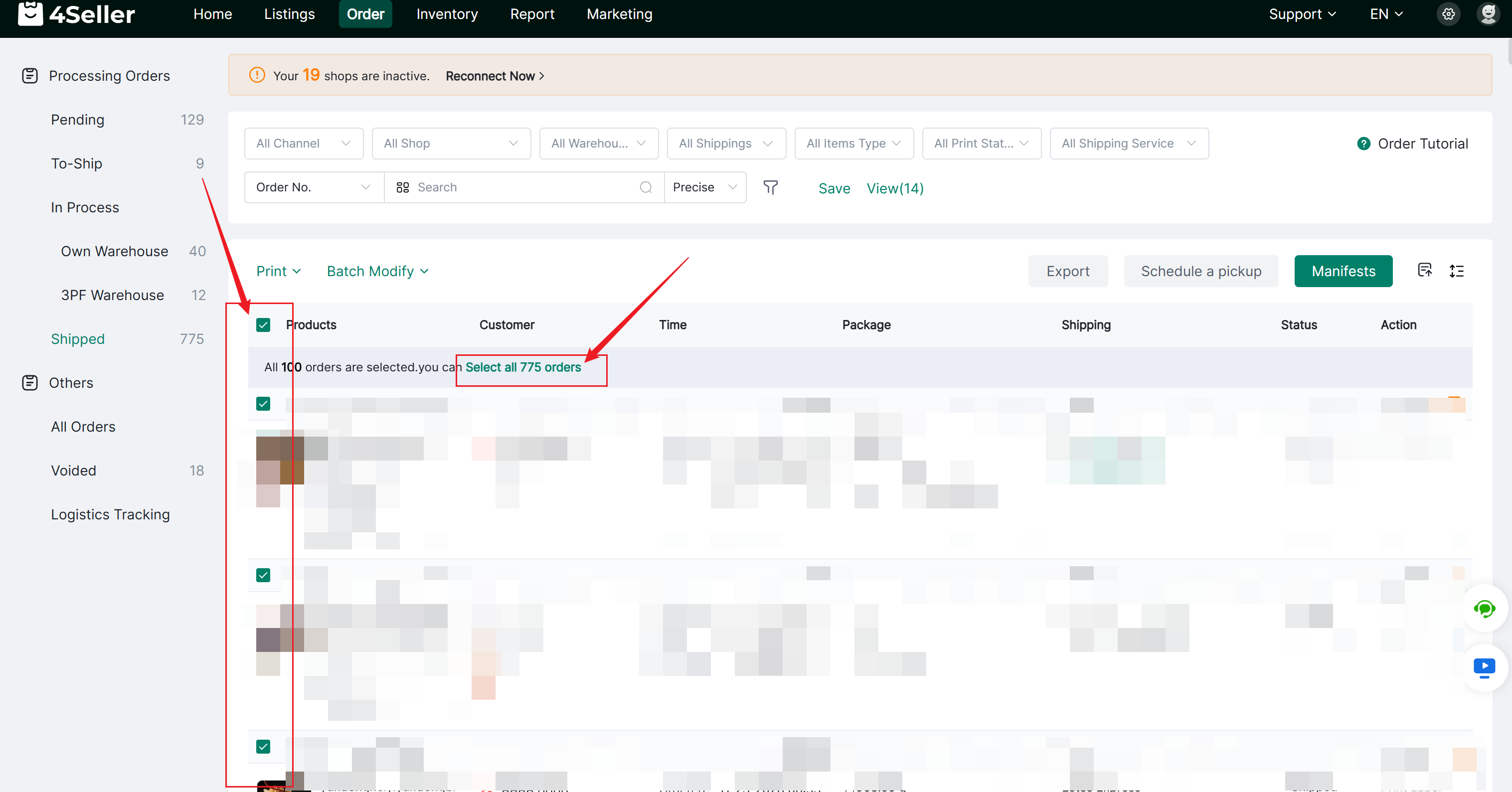
1. Select multiple orders. When the total number of orders is greater than 300 and no more than 1000, a green prompt “Select all available orders” will appear. Click this green prompt to enter high-speed printing mode.


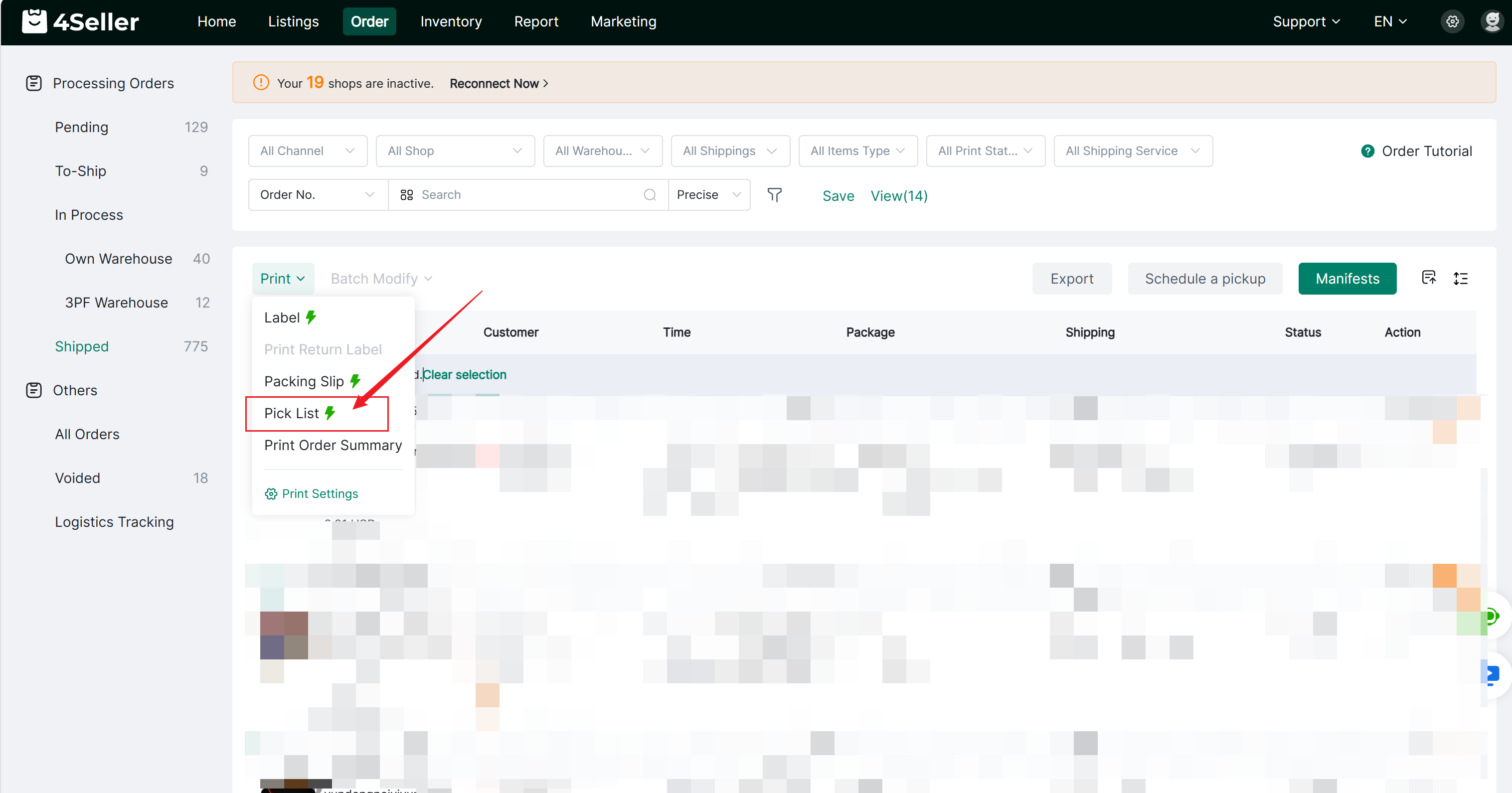
2. Click Print at this point. A green lightning icon will appear, indicating that high-speed printing pick list mode is activated.


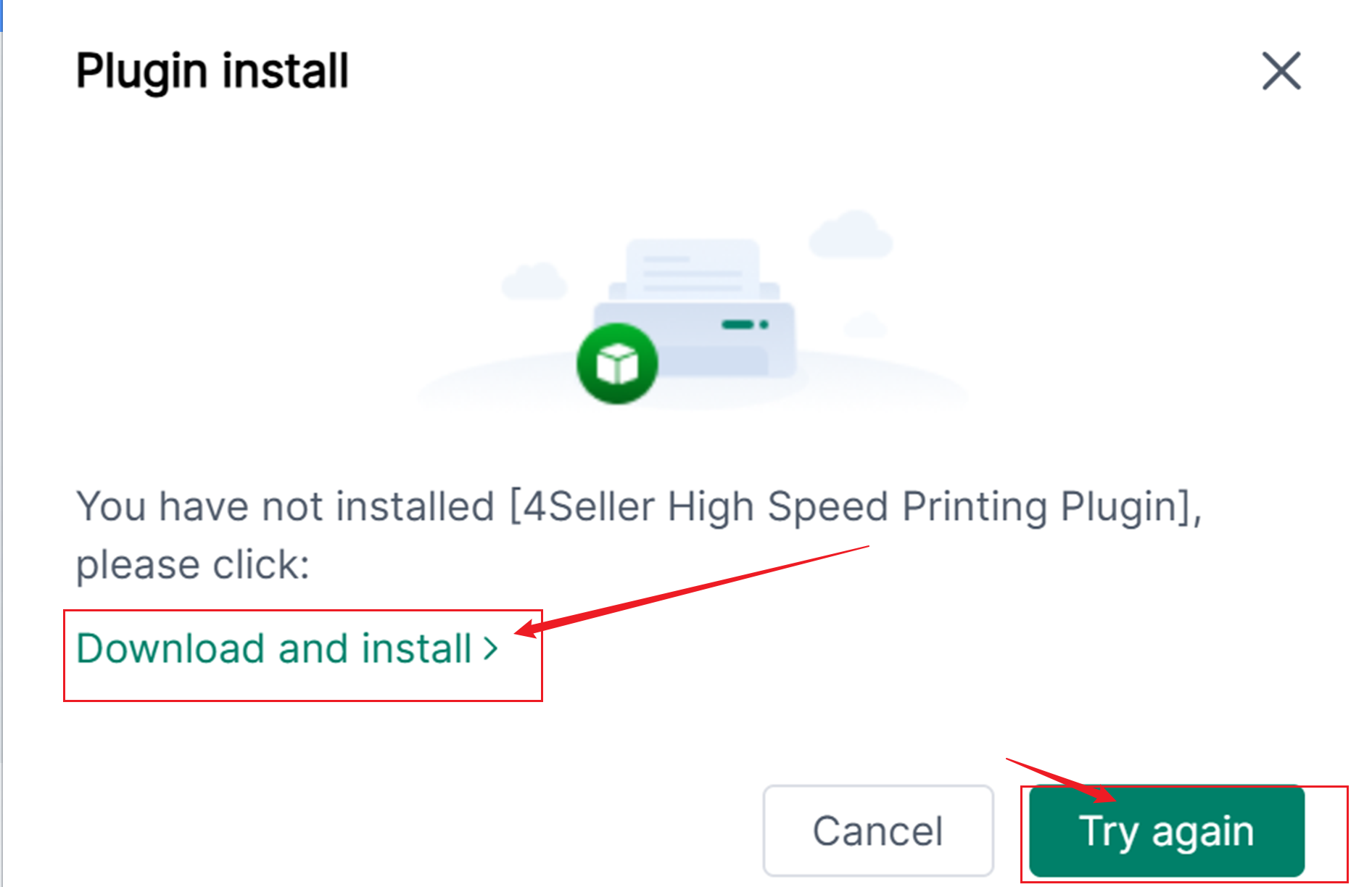
3.Click "Pick List" > Download and install >Try again


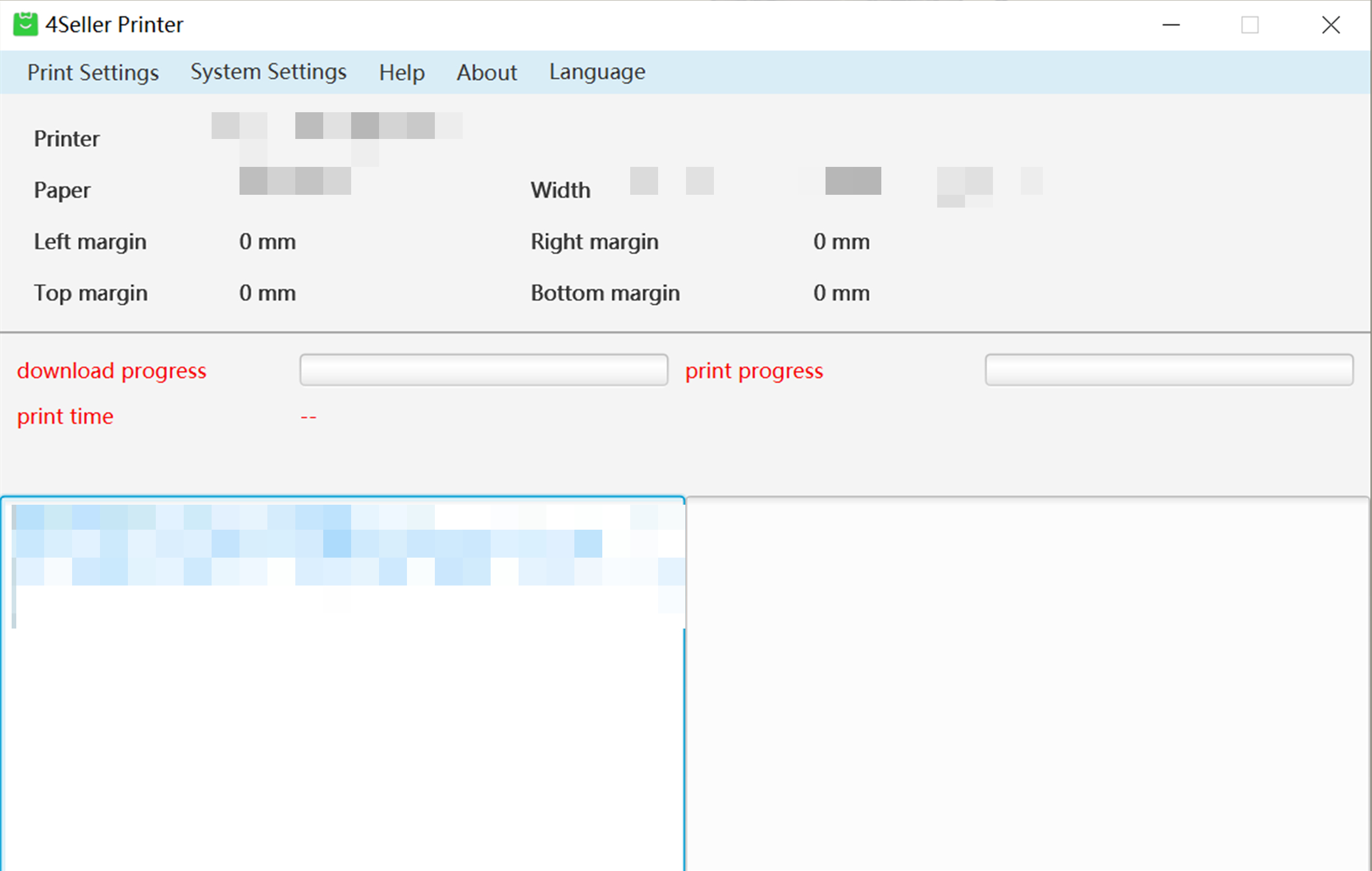
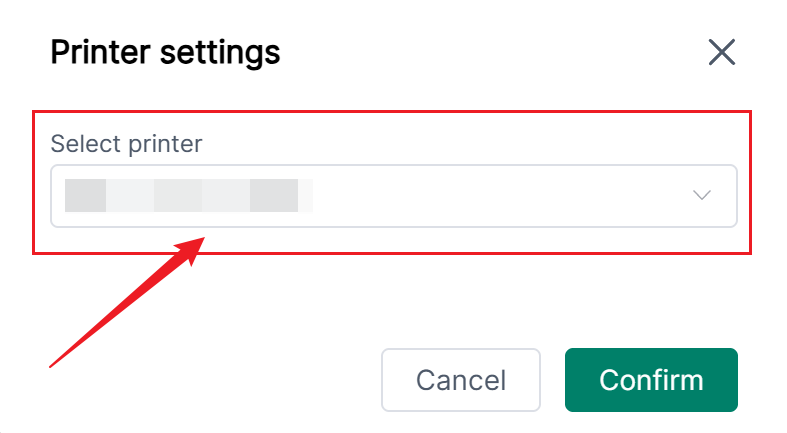
4. Once the download is complete, you can view the printer status and select which printer to use for printing.


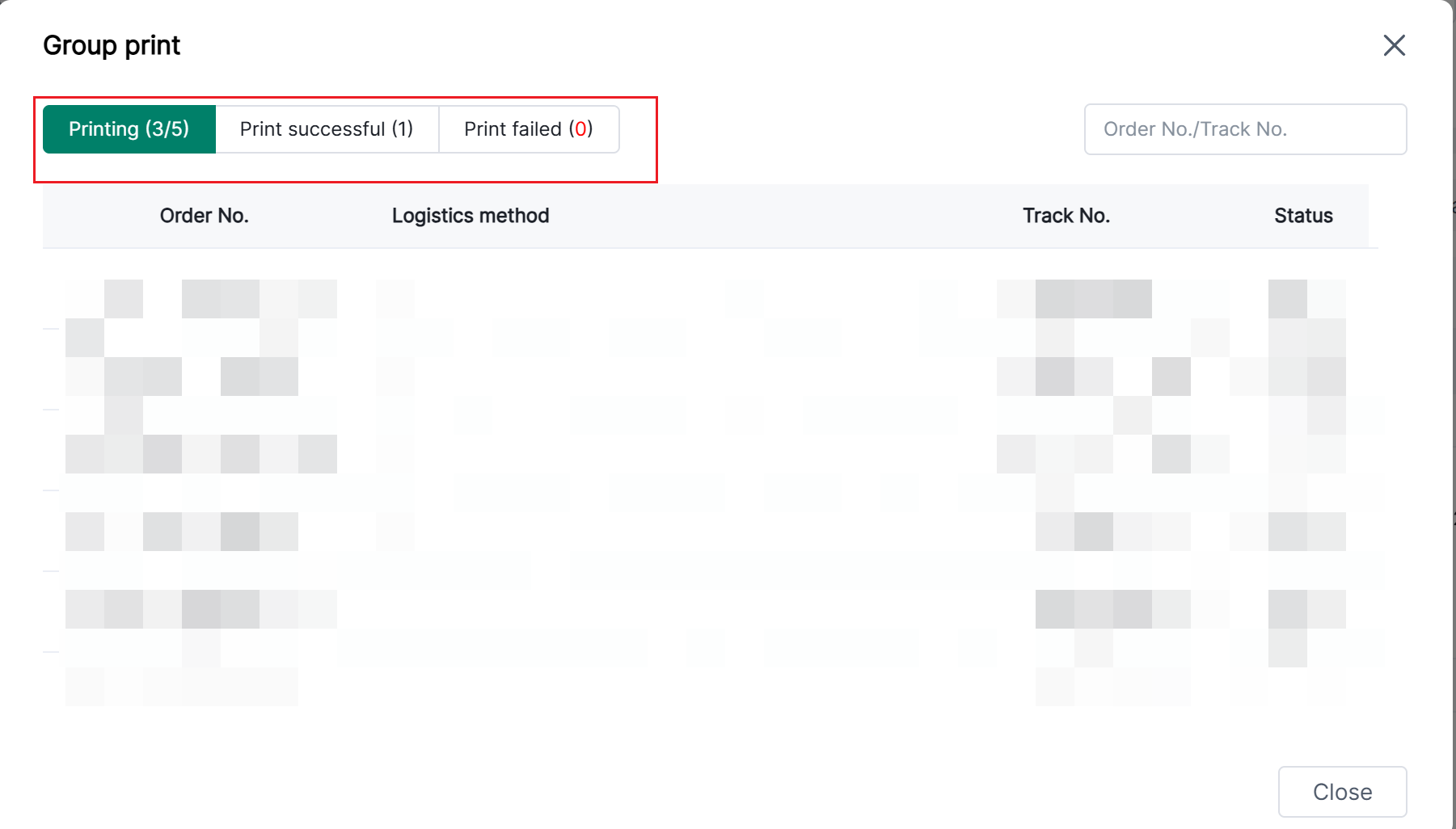
5. Once a printer is selected, the high-speed pick list printing mode bypasses the standard preview step, sending the document directly to the chosen printer. In this mode, you can monitor print status, or search for specific orders using their order numbers. If a print job fails, you can select it and retry the printing process.


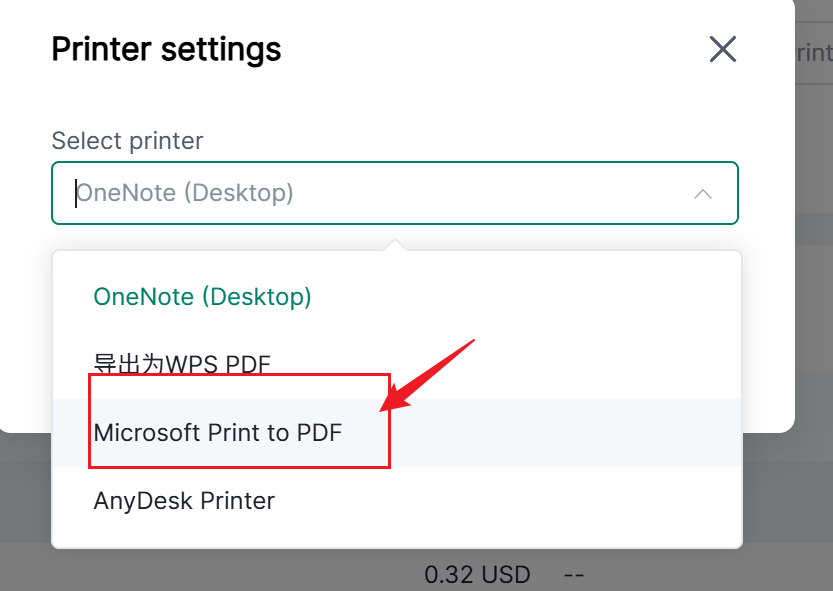
In addition, while the high-speed pick list printing feature in 4Seller bypasses the preview stage, the corresponding PDF documents can still be printed as usual. Simply select the option to export as a PDF within your printer settings; once the process is complete, a PDF file window will appear, which you can then open to view the document.


Any problem feel free to contact 4Seller Support Team: support@4seller.com